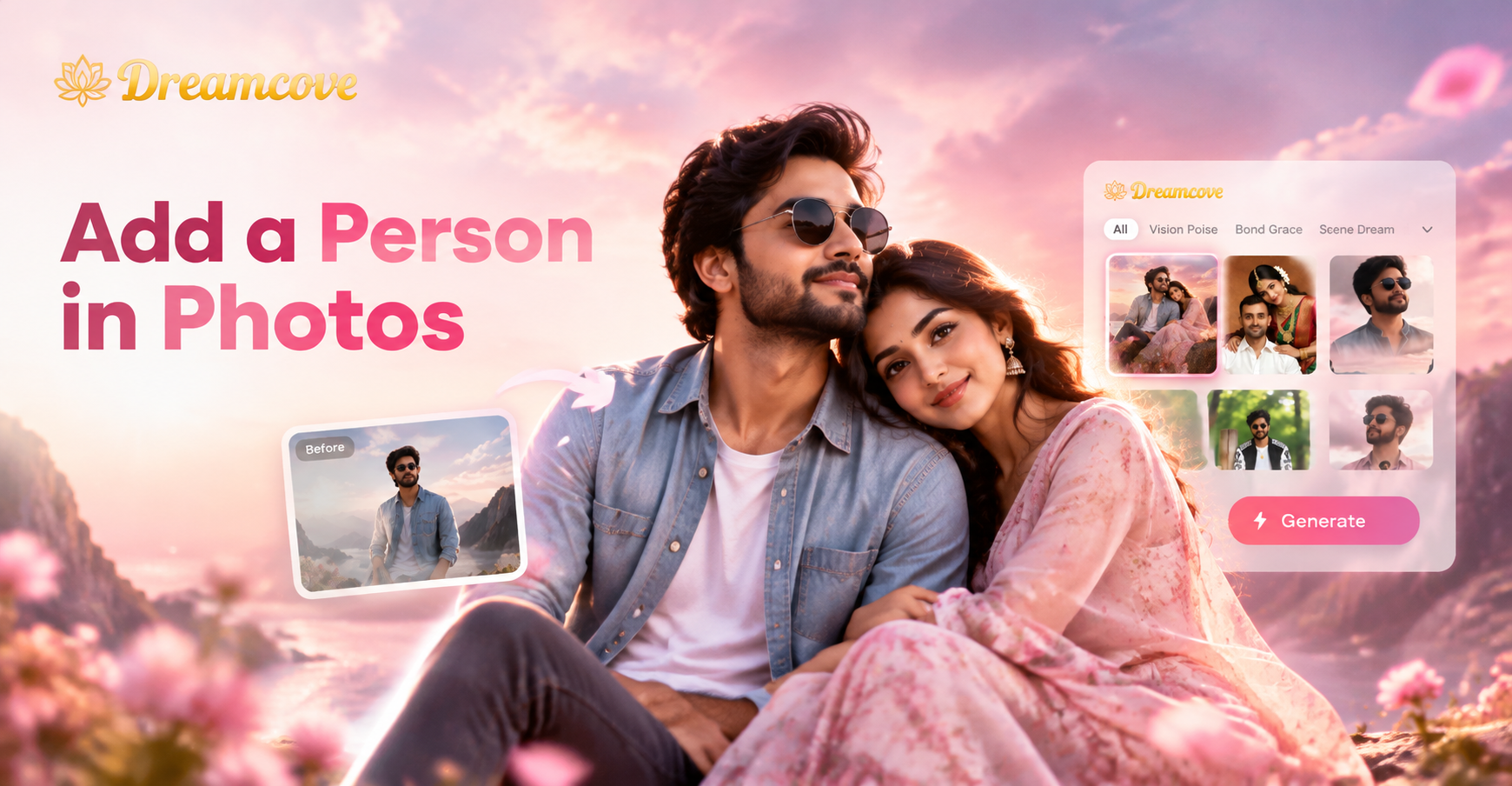
If you have a favorite photo but someone is missing, you can now add that person using AI photo editing. Dreamcove, an all in one AI design app, lets you blend a new person into an existing image with realistic lighting, shadows, and perspective. This guide explains the entire process, from preparing your source photos to generating a seamless result.
Why Add a Person in a Photo?
People add a missing friend or family member to group shots, insert themselves into travel photos they could not attend, or create fun fantasy images. AI tools make this possible without expensive software or manual masking. You can also use this technique to restore old photos by adding a person who was not in the original frame.
How to Add a Person in Photos with Dreamcove
Follow these steps using the Dreamcove mobile app. The app works on Android devices and you can download it from Google Play. All editing happens inside the app.
Step 1: Download the App
Install Dreamcove from the Google Play Store. Open the app and create a free account or continue as a guest. The app offers AI image generation, image to image conversion, and multi person photo processing.
Step 2: Choose the Right AI Feature
In the app, select the image to image or group photo feature. This mode allows you to upload a base photo and a reference photo of the person you want to add. The AI recognizes faces and body shapes to merge them naturally.
Step 3: Upload Your Base Photo
Choose the photo where you want to add the person. This could be a group picture, a landscape, or a portrait. Make sure the image is clear and has enough space for the new person.
Step 4: Upload the Person's Photo
Select a clear photo of the person you want to add. Use a well lit image where the face is visible and not obstructed. The AI uses this photo to extract the person's features and insert them into the base image.
Step 5: Adjust Position and Blending
After both images are uploaded, the AI will show a preview. Use the on screen controls to move, resize, or rotate the inserted person. Dreamcove's multi person detection keeps each face distinct, so the added person does not blend with existing faces.
Step 6: Generate the Image
Tap the generate button. The AI adjusts lighting, shadows, and color temperature to match the base photo. This takes a few seconds. Review the result and repeat the process if needed.
Step 7: Save and Share
When you are satisfied, download the final image to your phone. You can share it on social media or save it to your gallery.
Tips for Natural Results
- Use high resolution source photos. Avoid grainy or heavily compressed images.
- Match lighting direction. If the base photo has light from the left, choose a person photo with similar lighting.
- Keep perspective consistent. Try to use photos taken from a similar angle and distance.
- Use a clean background for the person photo. This helps the AI isolate the subject more accurately.
- Start with simple scenes. Busy backgrounds can cause edge artifacts.
Common Problems and Solutions
Blurry Insertion
If the added person looks blurry, use a sharper source photo. Increase the output resolution if the app offers that option. Avoid zooming in too much on a low quality image.
Face Blending or Distortion
When the AI merges two faces by mistake, choose a photo where each face is clearly separated. In group photo mode, the app should maintain individual faces. If distortion occurs, retry with a different reference photo.
Lighting Mismatch
A person added from a bright outdoor photo into a dim indoor scene will look unnatural. Apply a color correction filter inside the app or choose a source photo with matching exposure.
Edge Artifacts
Halo effects around the person indicate poor blending. Use a photo with a simpler background, or use the app's eraser tool to clean edges after generation if available.
Frequently Asked Questions
Can I add more than one person to a photo?
Yes. Dreamcove supports multi person photo processing. You can add multiple people by uploading each person's photo separately and letting the AI place them according to your arrangement.
Do I need design skills to add a person in photos?
No. The app does all the work. You only need to choose two photos and tap generate. Manual adjustments are optional.
Is the result realistic enough for social media?
For casual use, yes. With good source photos and matching lighting, the result is often believable. For professional work, you may need to refine edges or use additional editing.
Does Dreamcove work on iPhone?
Dreamcove is currently available on Google Play for Android devices. Check the official website for any future iOS release.
Final Thoughts
Adding a person to a photo is no longer a task reserved for Photoshop experts. With Dreamcove, you can insert yourself or a friend into any image in minutes. Download the app, follow the steps above, and create a picture perfect memory that includes everyone you want.