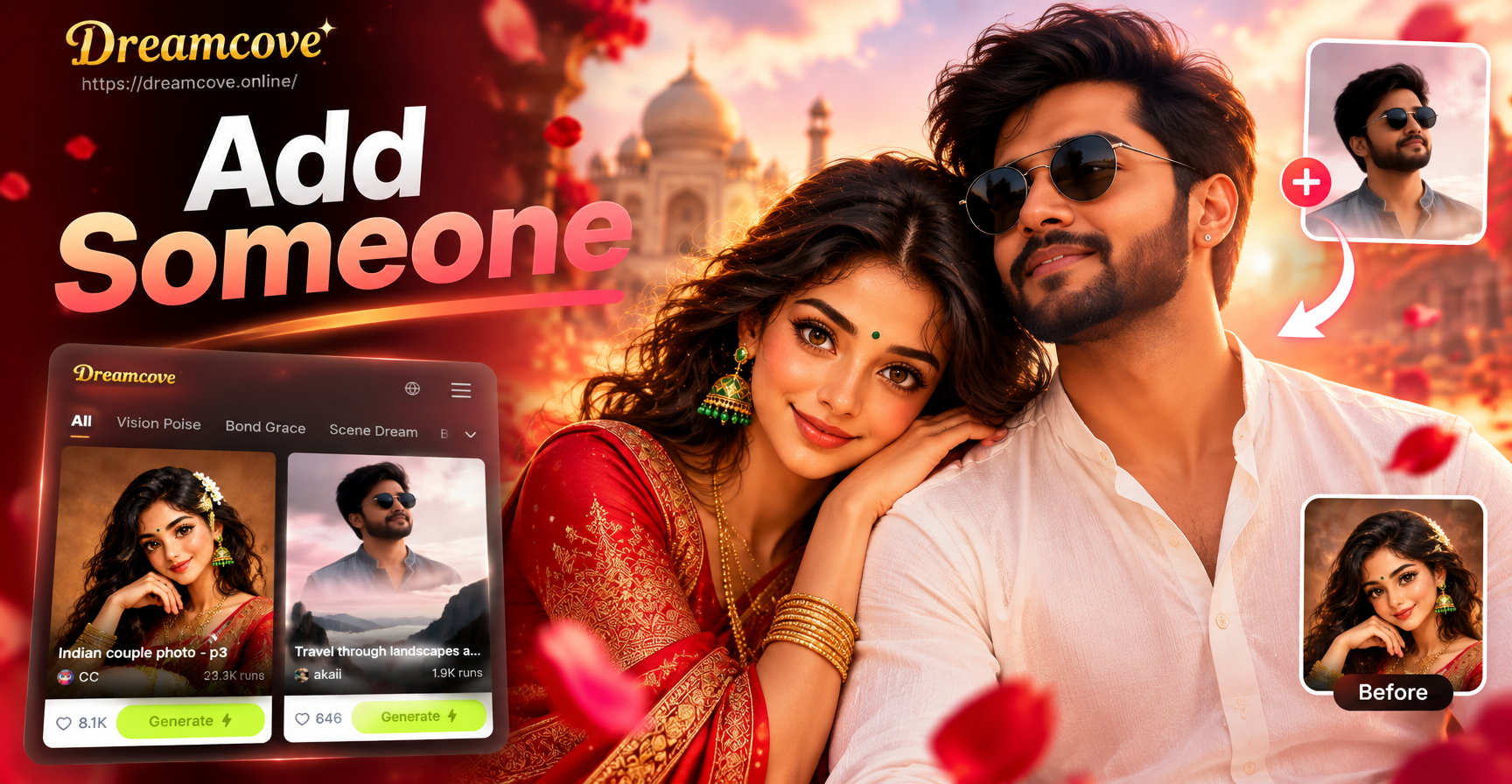
Adding someone to a picture used to require expensive desktop software and hours of manual masking. Today, AI apps can place a new person into a photo in a few minutes. dreamcove is a mobile AI design app that combines image to image generation with multi person photo processing. You can use it to add a missing friend to a group photo, insert a family member into a vacation memory, or create a fun composite for social media. This guide explains the exact steps and shares practical tips for natural results.
What You Can Do With AI Person Insertion
Before you start, it helps to know what kind of result you want. Some people need to add someone to an existing group photo. Others want to place a person into a different background entirely. dreamcove supports both workflows. If you have a base photo and a clear idea of the person, use the image to image feature. If you only have a text description and do not need an exact likeness, use text to image. For group photos where identity matters, use the multi person processing workflow.
Method 1: Add a Person Using Image to Image
This method works best when you already have a base photo and a separate image of the person you want to add. The AI uses your base layout as the foundation and blends the new person based on your text description. The result can look natural when you follow the right steps.
Step 1: Download dreamcove and Open the App
Go to Google Play on your Android device, search for dreamcove, and install it. The app is mobile only, so you will not find a web based editor. Open the app and sign in. You do not need design experience. The main workspace includes options for text to image, image to image, and video creation.
Step 2: Choose Your Base Photo
Upload the picture you want to edit. This can be a family portrait, a travel shot, or a friend group photo. Use a clear image with decent lighting. Blurry or heavily compressed photos make it harder for the AI to place the new person correctly. Avoid extreme angles and very small faces if possible.
Step 3: Describe the Person You Want to Add
In the prompt box, write what the person looks like and where they should appear. For example: "Add a smiling woman with shoulder length brown hair wearing a blue jacket on the left side of the group, matching soft indoor lighting." The more details you include, the better the AI can match skin tone, clothing, and body position. You can also use a separate reference image in the image to image workflow to help the model maintain the person's features.
Step 4: Generate and Review
Tap generate. The AI creates a new version of your picture with the person added. Review the result carefully. Zoom in on faces, hands, and the seams where the new person meets the original scene. If something looks off, adjust your prompt or regenerate. Small changes in wording often fix unnatural placement.
Method 2: Add Someone to a Group Photo
dreamcove has multi person photo processing. This is useful for group photos where you need to insert a missing member. The AI can identify existing faces and keep their features distinct without blending them into one person.
Prepare Your Group Photo
Choose a group photo with clear faces. Avoid extreme shadows or people standing too close together. If the new person needs to fit into a specific spot, leave some visual space or edit the prompt to place them naturally. A photo where everyone faces the camera works best.
Let the AI Detect Faces
When you upload a group photo, the app's multi person processing works to separate each face. This helps preserve identity and prevents the AI from merging two people into one. The final image should keep each subject distinct while adding the new person in a believable position.
Prompt for the New Person and Adjust
Write a detailed prompt: "Add a tall man with short black hair and glasses standing on the right side, wearing a white shirt, same outdoor lighting and background." If the first result places the person too close or too far, tweak the wording. Try "place him slightly behind the front row" or "make him the same height as the person next to him." Regenerate until the spacing looks natural.
Method 3: Generate a New Picture From Text
If you do not need to preserve a real photo's background, you can create a new image from scratch that includes the person. Use text to image: "A family of five standing on a beach at sunset, including a young girl in a yellow dress." This method is fast for social media graphics or greeting cards, but it may not match a real person's exact face unless you combine it with a reference image. For realistic person insertion into an existing photo, Method 1 or Method 2 is usually better.
Example Prompts for Adding a Person
These prompt templates can help you get started. Adjust the details to match your photo and the person you want to add.
- Add a young woman with curly black hair and a red scarf on the left side of the group, soft window light, natural smile.
- Insert a middle aged man in a gray suit into the back row, same office background, warm indoor lighting, sharp focus.
- Place a small child with blonde hair and a blue coat in front of the family, outdoor park setting, bright daylight, everyone looking at the camera.
- Add a teenage boy with short brown hair and a green hoodie next to the birthday table, dim party lights, candid pose.
Tips for Natural, Convincing Results
- Match lighting and shadows. If the base photo is warm and sunny, describe the new person in warm light.
- Use consistent clothing style. Formal outfits belong in formal settings, casual clothes in casual scenes.
- Keep perspective logical. A person added to the back row should appear slightly smaller than someone in the front row.
- Start with high resolution base photos. More detail gives the AI more information to work with.
- Make small changes and compare results. One word can affect placement, so keep a version you like before regenerating.
- Use simple, direct language in prompts. Write complete sentences and avoid vague words like "maybe" or "somewhere."
Common Problems and How to Fix Them
The Added Person Looks Pasted In
Fix this by describing lighting direction and adding shadow details. Use phrases like "seamless blending" or "same light source as the group." If the person still looks separate, try a higher resolution base photo and reduce contrast differences between the person and the background.
Face Looks Distorted or Blurry
Use a sharper reference image and keep the face centered in the prompt. Avoid extreme angles or heavily edited selfies. Regenerate with more facial detail in your description, such as eye color, hairline, and facial hair.
Wrong Number of People in the Final Image
State exactly how many people should be in the final picture. For example, "The final image must contain 5 people." This helps the AI avoid duplicating or dropping subjects.
Background Changes Unexpectedly
Add "keep the original background unchanged" or "preserve the same room, furniture, and wall color." If the app changes the background too much, use a simpler prompt that focuses only on the person, not the scenery.
Is Adding Someone to a Picture Ethical?
AI photo editing is powerful, so use it responsibly. Only edit photos you have permission to alter. Get consent from the person you are adding and from the people already in the photo if you plan to share the result. Do not use edited images to mislead others, create fake evidence, or harm someone's reputation. For personal keepsakes, gifts, and creative projects, adding a person to a picture can be a fun and meaningful way to complete a memory.
Frequently Asked Questions About Adding Someone in a Picture
Can I add a person to a photo for free?
dreamcove offers free access to basic AI image generation features, though some filters or high resolution exports may require a premium plan. You can test the image to image workflow without advanced skills.
How realistic will the added person look?
Realism depends on the quality of your base photo, the clarity of your reference image, and the specificity of your prompt. Natural lighting, matching skin tones, and a well written description produce the best results.
Can I add more than one person at a time?
Yes. In your prompt, describe each person and their position. For example, "Add two women on the right, one with short red hair and one with long black hair." Multi person processing can help keep faces distinct.
Do I need Photoshop skills?
No. dreamcove is designed for simple mobile use. You describe what you want, tap generate, and adjust the result. No manual masking or layer work is required.
Final Thoughts
Adding someone in a picture is no longer a complex task. With dreamcove, you can upload a photo, write a clear prompt, and let the AI insert a new person in seconds. Start with a high quality base image, describe the person in detail, and review each result before sharing. If you want to try it, download dreamcove from Google Play and open the image to image or group photo workspace. With a little practice, your composites will look natural enough to print, post, or frame.